


Leaderboard
-
RyanYTH
Members1Points378Posts

Popular Content
Showing content with the highest reputation on 12/28/17 in all areas
-
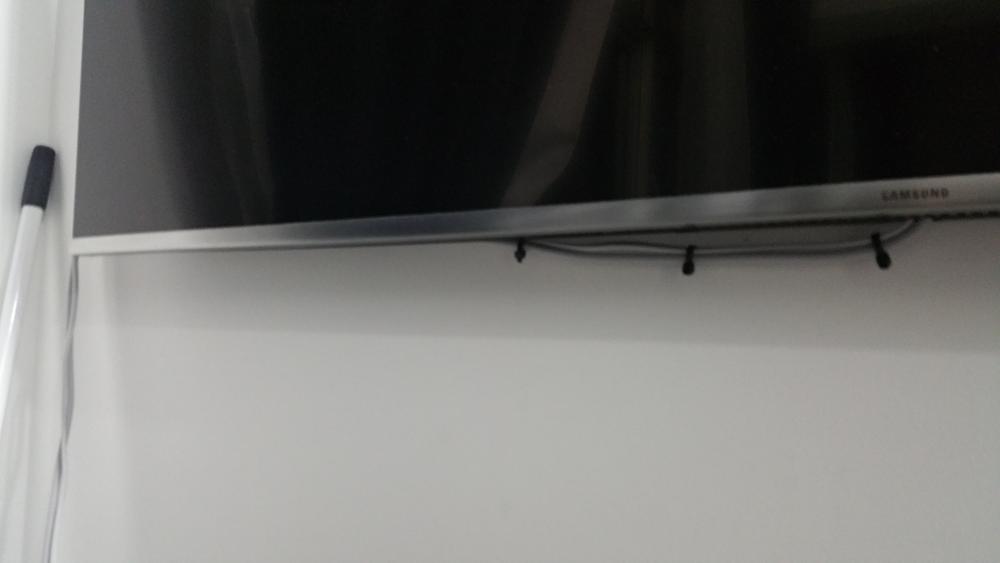
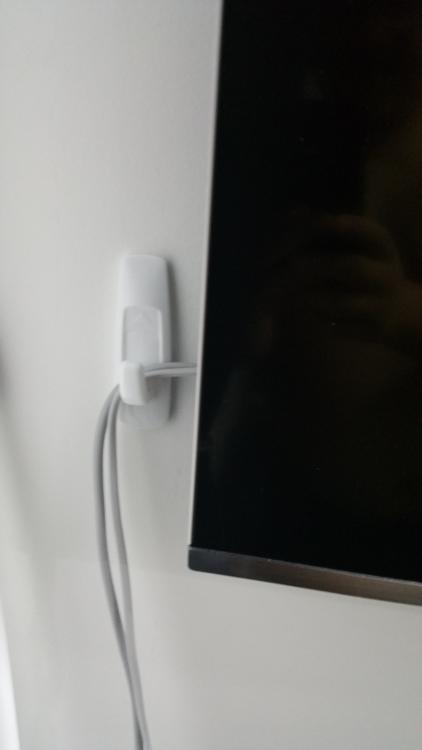
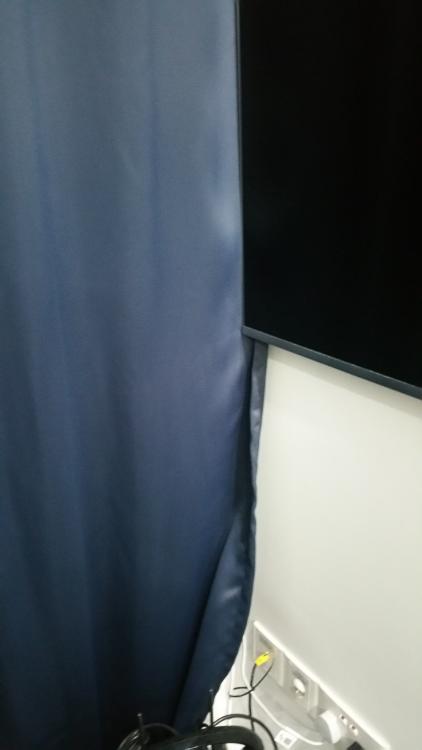
Ok first I use cable tie to bunch up the cables and try my best to slot them as deep as I can into the TV. At the side, I stick a 3M hook to hold the cables as they come out and dangle to the side. To cover up the cables that are dangling vertically from the hook, sometimes I will use my curtain to hide it. Sorta like an illusion. If I don't let down the curtain however, the cables dangling down will of course still be seen, but I find it neater for them to dangle at the side compared to having them dangle right in the middle of the TV. (That stick you see at the side is something I use to hold the curtain to the wall because if I open the window, sometimes the wind will tend to blow the curtain, obscuring my view to the TV. I still haven't found a more elegant solution to this, so this stick will have to do for now ) At certain angles (like the below picture) and sometimes when I'm leaned back on my Sofa, I don't see the cables as they dangle on the side, hidden by the curtain.
 1 point
This leaderboard is set to Singapore/GMT+08:00