


Leaderboard
-
superp
Members1Points4Posts

Popular Content
Showing content with the highest reputation on 12/29/18 in all areas
-
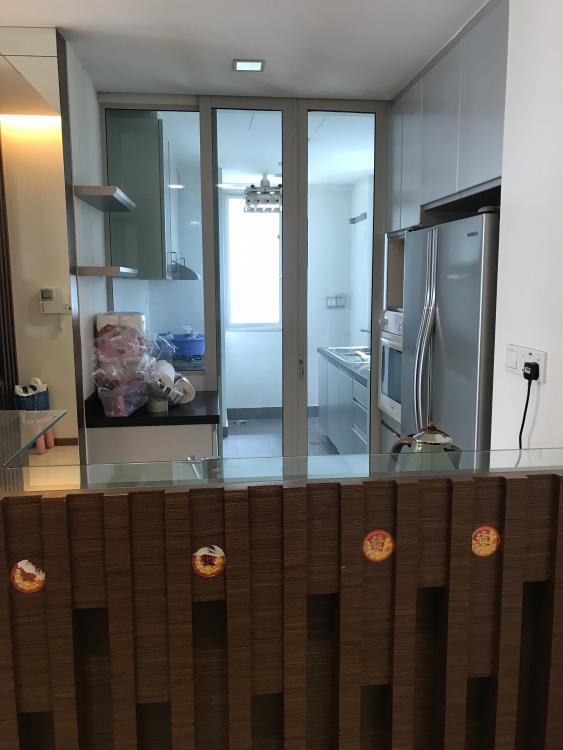
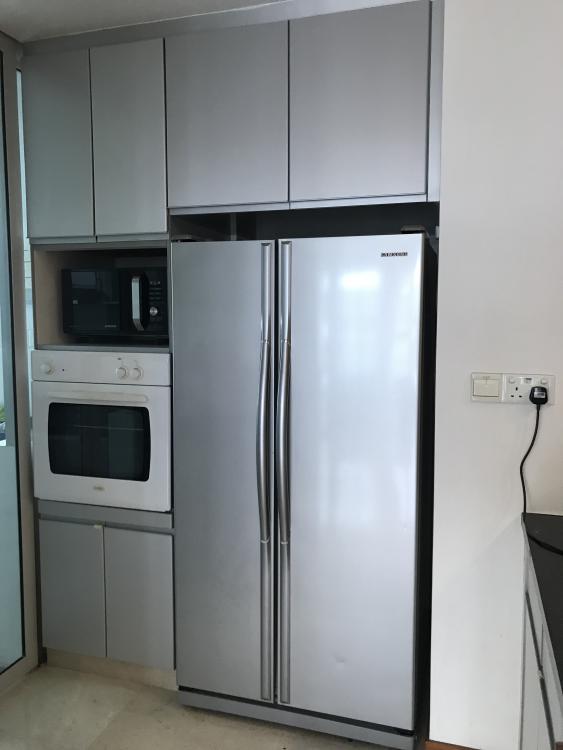
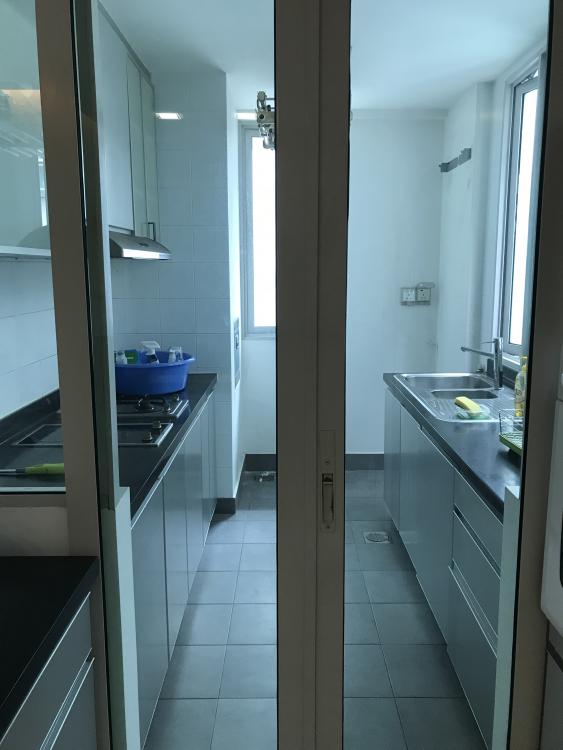
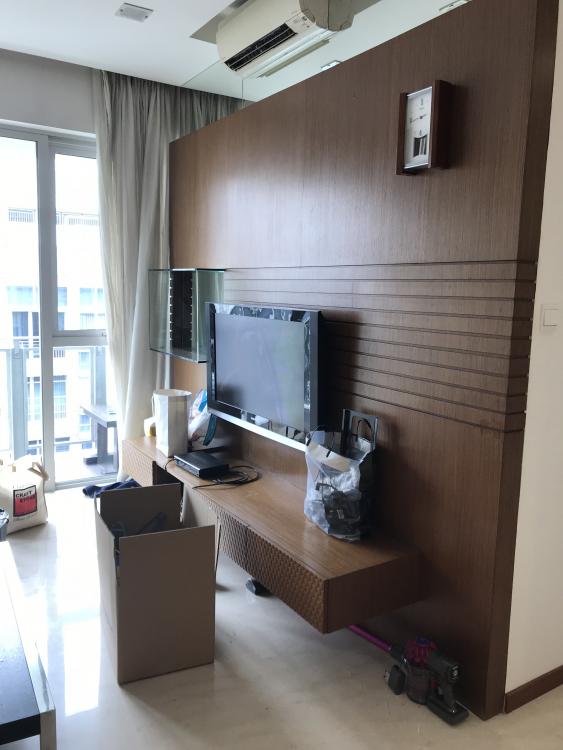
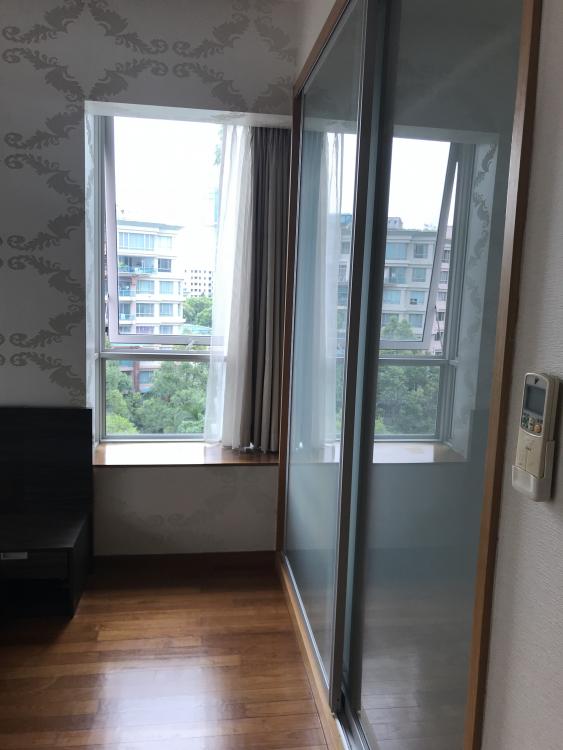
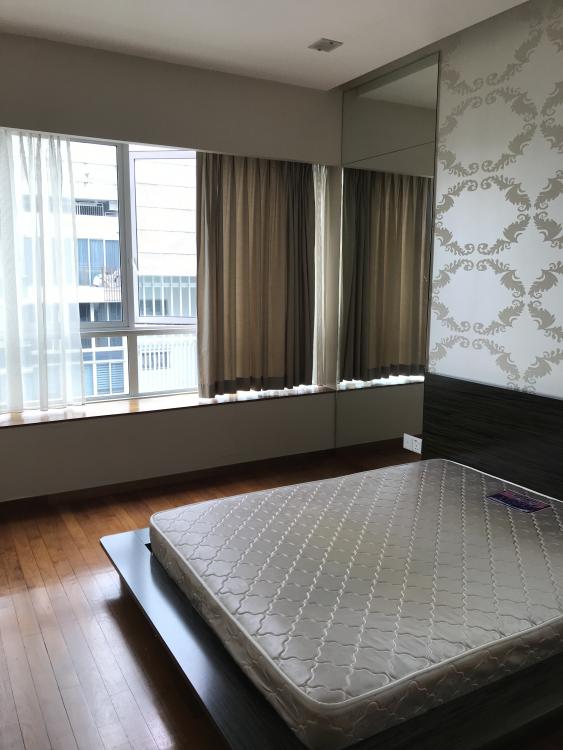
I benefited a lot from renotalk over the course of my reno journey, so here is my little contribution and review After renting for close to 2 years in our estate, we finally manage to get a unit that we love. Unfortunately, since the house was coming to 10years, there was quite a bit of renovation needed to be done. We met up with 5 IDs but finally settled with Kevin Yap from Ideal house as my main contractor as he was highly recommended over here and on a blog I chanced upon. For our kitchen, we chose Mr See from Jia Aik as he was highly raved upon when we went to the Blum showroom. Our place is a 2+s unit, around 1000sqf. Pictures of the the old unit before reno commenced. The old unit had a lot of darker color wood built in and platform beds which I personally dislike. Some pictures!
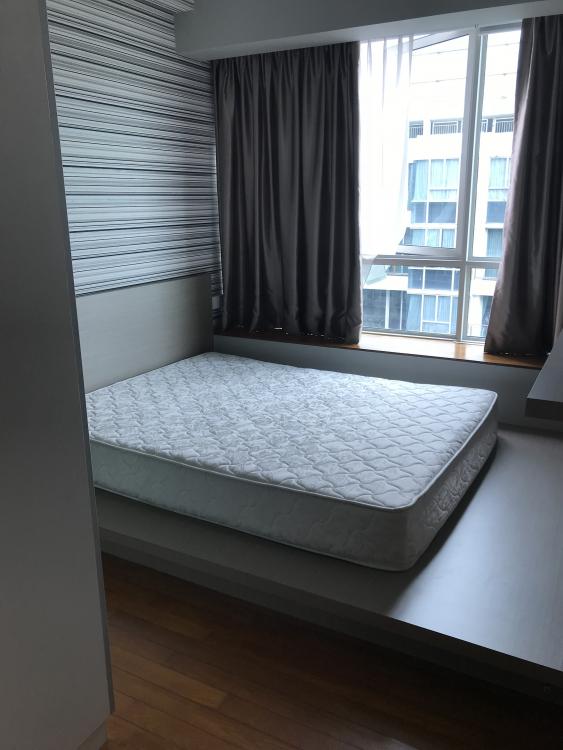
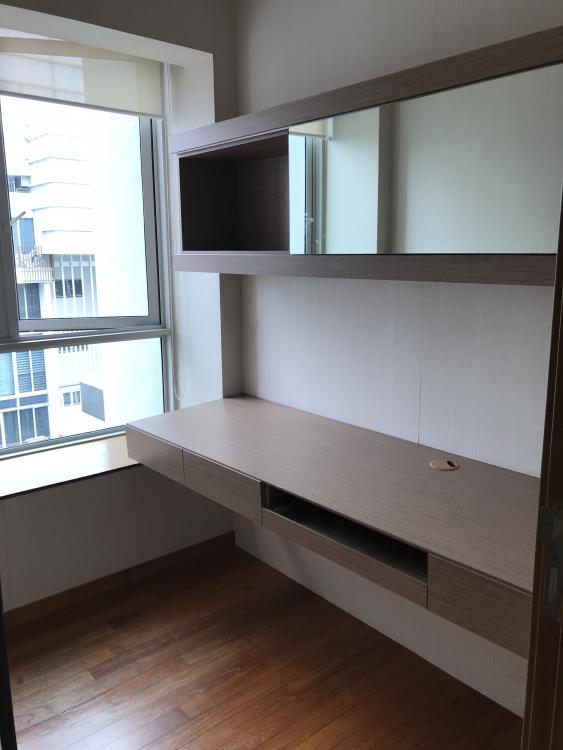
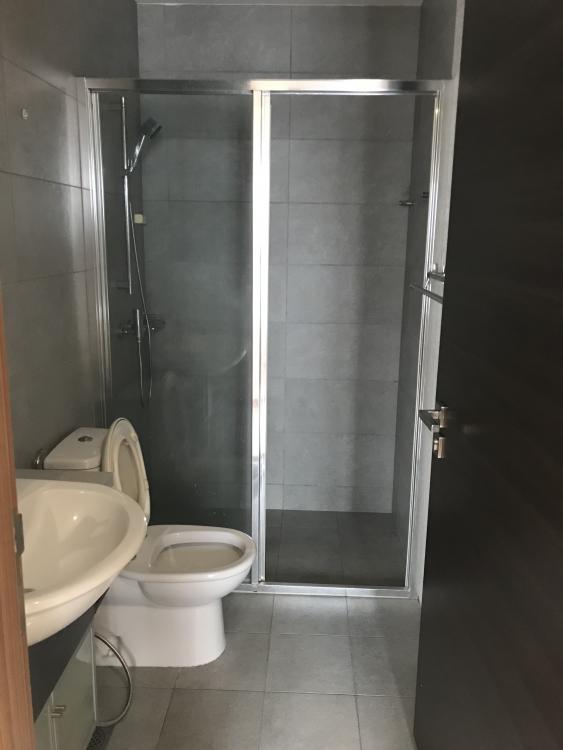
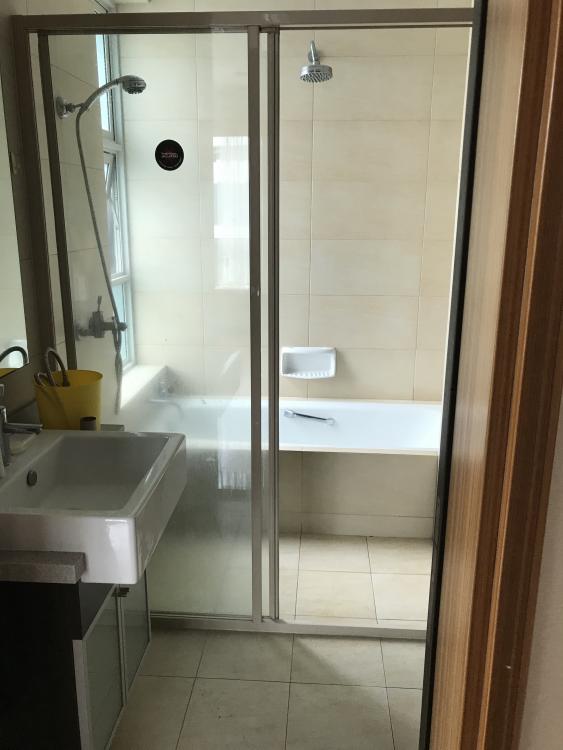
 1 point
This leaderboard is set to Singapore/GMT+08:00